
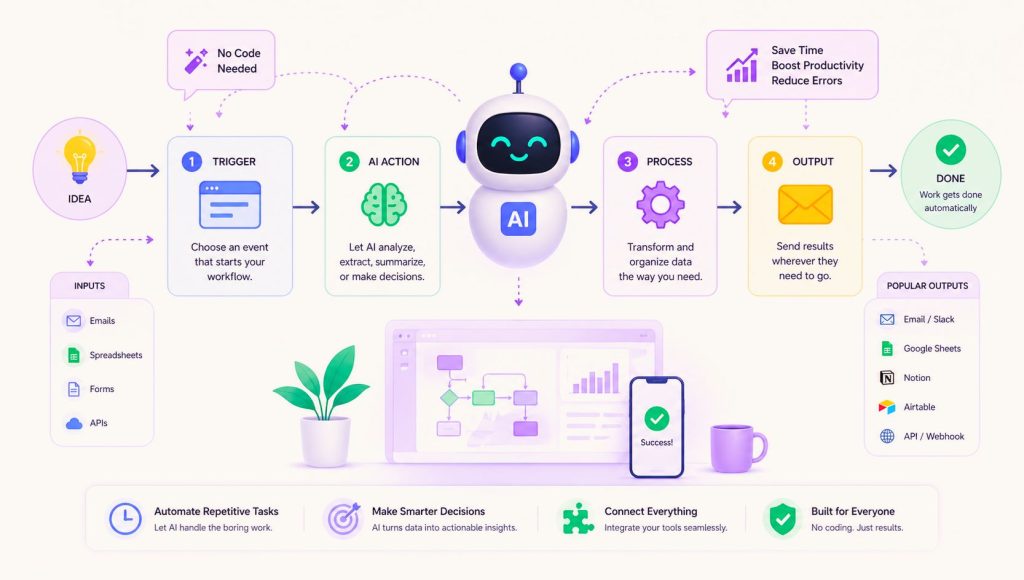
You’re spending at least 2 hours a day on tasks that should run themselves.
Copying leads from one tool to another. Writing the same follow-up email. Manually summarizing meeting notes. Moving files between apps. Responding to the same customer questions over and over.
Here’s what most people don’t know: you don’t need a developer, a budget, or a single line of code to automate all of it with AI. In 2026, no-code AI workflow tools have become powerful enough that a solo marketer, a small business owner, or a freelance consultant can build automations in an afternoon that used to take an engineering team weeks.
This guide shows you exactly how — step by step, tool by tool, workflow by workflow.
What Is an AI-Powered Workflow? (And Why It’s Different From Old-School Automation)
Before we dive into the how, let’s get the definition right — because there’s a big difference between basic automation and an AI-powered workflow.
Basic automation follows rigid rules: If this happens, do that. An email arrives → move it to a folder. A form is submitted → send a confirmation. These are useful, but they’re brittle. The moment something unexpected happens, they break.
AI-powered workflows are smarter. They can read the content of an email and decide what to do based on what it says. They can summarize a document, classify a support ticket, write a first draft of a reply, or extract structured data from a messy PDF — all without you touching a thing.
Think of it this way: traditional automation is a robot that follows a script. An AI workflow is a robot that understands context and acts accordingly.
The numbers back this up. Workers using AI tools complete tasks 66% faster, and Harvard Business School research found AI users finished work 25.1% faster while achieving 40% higher quality ratings — meaning speed gains don’t come at the expense of output quality.
That’s not a marginal improvement. That’s transformational.
The 3 Tools You Need to Know (And Which One Is Right for You)
You don’t need to learn 20 tools. You need to pick one and get good at it. Here are the three platforms that dominate the no-code AI workflow space in 2026, and a clear verdict on who each one is best for.
Zapier — The Easiest Starting Point
Zapier has been around since 2011 and remains the most beginner-friendly option on the market. With over 8,000 integrations, Zapier covers more apps than any competitor, and its linear step-by-step builder guides you through creating automations without any technical knowledge required.
In 2026, Zapier added Zapier Copilot — an AI assistant that helps you build automations by describing what you want in plain English. You type “When someone fills out my Typeform, summarize their answers with AI and send me a Slack message,” and Copilot builds the workflow for you.
Pricing: Free tier includes 100 tasks/month. Professional plan starts at $19.99/month (billed annually) for 750 tasks.
Best for: Non-technical users, small teams, simple-to-moderate automations, anyone who wants to see results on day one.
The honest tradeoff: Zapier gets expensive at scale. If you’re running high-volume workflows, costs add up fast.
Make (formerly Integromat) — The Power User’s Choice
Make sits between Zapier and full developer tools. Its visual canvas lets you build branching, multi-path workflows that Zapier’s linear approach can’t handle. Make offers the most generous free tier: 1,000 operations monthly with two active scenarios — providing meaningful capability without cost for teams testing the automation waters.
Where Make shines is in data manipulation. If your workflow involves transforming, filtering, or routing data in complex ways — think processing a CSV, making API calls, or handling conditional logic — Make handles it cleanly without code.
Pricing: Free tier is genuinely useful. Paid plans start around $9/month.
Best for: Ops teams, marketers with complex multi-step workflows, anyone who has outgrown Zapier.
The honest tradeoff: The learning curve is steeper than Zapier. Budget 2-3 hours to get comfortable with the canvas.
n8n — The Open-Source Option for Control Freaks
n8n is the tool developers recommend. It’s open-source, which means you can self-host it on your own server for free. n8n now includes a built-in AI Agent node that puts an LLM at the center of a workflow: the AI decides which tools to call, reads the results, and chains actions together until the task is complete.
For teams with data privacy requirements — HIPAA, GDPR, financial services — self-hosting n8n means your data never leaves your infrastructure.
Pricing: Self-hosted Community edition is free (unlimited workflows). Cloud Starter is $20/month.
Best for: Technical founders, dev-adjacent teams, anyone who needs full data control or wants to build true agentic AI workflows.
The honest tradeoff: More setup required upfront. Not ideal if you want something running in an hour.
Quick decision guide:
| You are… | Use this |
| A non-technical founder or marketer | Zapier |
| An ops manager with complex workflows | Make |
| A developer or privacy-conscious team | n8n |
| On a tight budget with basic needs | Make (free tier) |
Step-by-Step: Building Your First AI Workflow in Under an Hour
Let’s build something real. We’ll use Zapier for this walkthrough because it’s the most accessible — but the same logic applies in Make and n8n.
The workflow we’re building: Automatically summarize new emails from leads and post the summary to your Slack — so you always know what came in without reading every email.
This workflow saves 30-45 minutes a day for anyone dealing with high email volume.
Step 1 — Sign Up and Open the Workflow Builder
Go to zapier.com and create a free account. Click “Create Zap.” You’ll see the workflow canvas — a simple left-to-right flow showing Trigger → Actions.
Step 2 — Set Your Trigger
The trigger is the event that starts your workflow. For this example:
- Search for and select Gmail (or Outlook if you use it)
- Choose the trigger event: New Email
- Connect your Gmail account and grant permissions
- In the “Label/Mailbox” field, filter to only trigger on emails from a specific label (e.g., “Leads”) so it doesn’t fire on every email
Click “Test trigger” — Zapier will pull in a recent email as sample data. You’ll see the email subject, body, sender, and timestamp all available as variables for the next steps.
Step 3 — Add an AI Action (This Is the Magic Part)
Click the “+” to add your first action after the trigger.
Search for “ChatGPT” or “OpenAI” in the app list. Select it and choose the action “Send Message.”
Connect your OpenAI account (you’ll need an API key — it takes 2 minutes at platform.openai.com). Then build your prompt:
Summarize the following email in 3 bullet points.
Focus on: (1) what the person wants, (2) any deadline mentioned,
(3) the appropriate next action.
Email:
[Insert the email body variable here]
To insert the email body, click the purple variable icon and select “Body Plain” from your Gmail data. Zapier will automatically insert the actual email content when the workflow runs.
Set the model to GPT-4o for best results.
Step 4 — Send the Summary to Slack
Add another “+” after your OpenAI step. Search for Slack and select “Send Channel Message.”
Connect your Slack workspace and choose the channel where you want summaries posted. In the message body, build a clean format:
📧 *New Lead Email*
*From:* [Sender Name variable]
*Subject:* [Subject variable]
*AI Summary:*
[OpenAI Response variable]
*Original received:* [Date variable]
Step 5 — Test and Turn On
Click “Test step” on each action to confirm everything works. You’ll see a test Slack message appear in your channel with a real AI summary of a real email.
If it looks right: click “Publish.” Your workflow is live.
Every time a new email arrives in your Leads label, the AI will summarize it and post it to Slack — automatically, while you’re sleeping, in meetings, or working on something more important.
Total setup time: 45-60 minutes for a first-timer.
5 High-Impact AI Workflows to Build This Week
The email summary workflow is just the beginning. Here are five more workflows that busy professionals use to reclaim hours every week — all buildable with no code.
1. Meeting Notes → Action Items → Notion
The problem: You finish a meeting, someone says “I’ll send notes,” and two days later nothing has happened.
The workflow:
- Trigger: New recording processed in Otter.ai or Fathom
- AI step: Extract action items, owners, and deadlines from the transcript
- Action: Create individual tasks in Notion or ClickUp for each action item, assigned to the right person
Time saved: 20-30 minutes per meeting. For a team that has 5 meetings a week, that’s over 2 hours recovered weekly.
2. Inbound Lead → Personalized Outreach Draft
The problem: A new lead fills out your contact form. You write a personalized reply, but it takes 15-20 minutes to research them and craft something thoughtful.
The workflow:
- Trigger: New submission in Typeform, Tally, or your CRM
- AI step: Research the lead’s company using their website URL (passed via the form) and write a personalized outreach draft based on what they’re looking for
- Action: Create a draft email in Gmail ready for your 30-second review and send
Time saved: 15 minutes per lead. For 10 leads a week, that’s 2.5 hours back.
3. Customer Support Ticket Triage
The problem: Your support inbox is a mix of billing questions, bugs, feature requests, and angry complaints — and every type needs a different response.
The workflow:
- Trigger: New ticket in Zendesk, Intercom, or even a Gmail label
- AI step: Classify the ticket type and sentiment, draft a suggested response
- Action: Tag the ticket with the right category, assign to the right team member, and post the draft reply for quick review
This is the category where AI delivers the most dramatic ROI. A leading insurance company reduced claims processing time by 70% using AI to extract information from submitted documents and automatically route simple claims for immediate payment. The same principle applies at any scale.
4. Content Repurposing Pipeline
The problem: You publish a blog post or record a podcast, and then spend hours turning it into LinkedIn posts, Twitter threads, and email newsletter snippets.
The workflow:
- Trigger: New post published on your blog (RSS feed), or new video/audio processed
- AI step: Generate 3 LinkedIn post variations, 1 Twitter thread, and 1 email newsletter snippet from the original content
- Action: Send all variations to a Google Doc or Notion page for review and scheduling
Time saved: 2-3 hours per piece of content.
5. Weekly Report Generation
The problem: Every Monday morning you pull numbers from 4 different tools to put together a performance summary for your team or clients.
The workflow:
- Trigger: Scheduled (every Monday at 8am)
- AI step: Pull data from Google Analytics, your CRM, and your ad platform via their APIs, then generate a narrative summary with insights and recommendations
- Action: Email the report to your team or post it to Slack automatically
Microsoft customer Games Global saves 22,370 hours per year by automating workflows including on-call approvals, employee onboarding, and reporting. Reporting automation alone — even at a small team level — compounds into serious time savings over months.
The Most Common Mistakes People Make (And How to Avoid Them)
Building your first AI workflow is exciting. Here’s what trips people up, and how to skip the frustration.
Mistake 1: Trying to automate everything at once. Start with one workflow. Get it working perfectly. Then expand. Teams that try to automate 10 things simultaneously usually automate 10 things badly. The strongest AI workflow strategies stay narrow before they scale — pick the workflows with the clearest pain, measure the change, then expand.
Mistake 2: Automating a broken process. AI automation makes your processes faster — it also makes broken processes fail faster. Before automating something, ask: does this process actually work when done manually? If the answer is “sort of,” fix the process first.
Mistake 3: No human review step on critical outputs. AI makes mistakes. A customer-facing email drafted by AI should have a 10-second human review before sending. Build in a review step for anything that goes to a customer, client, or external party until you’ve validated the output quality over at least 50-100 runs.
Mistake 4: Ignoring the cost of AI API calls. OpenAI, Anthropic, and Google charge per token (roughly per word processed). For low-volume workflows this is negligible — pennies per run. But if you’re processing thousands of emails or documents per month, model costs add up. Check your usage dashboard weekly for the first month.
What to Build Next: Growing From One Workflow to a Full AI Stack
Once your first workflow is running reliably, the next step is connecting workflows together into what practitioners call a “full AI stack” — a set of automated systems that cover your most repetitive work end-to-end.
A simple but powerful stack for a small marketing team might look like this:
- Top of funnel: Inbound lead classification and personalized outreach
- Mid funnel: CRM updates from email and call activity, with AI-written summaries
- Content: Blog post → social media repurposing → newsletter draft pipeline
- Reporting: Weekly automated performance report with AI-generated insights
- Internal ops: Meeting notes → task creation → project tracking
Content volume tripled from 4 articles per month to 12 with the same two-person team when teams implemented AI workflow systems — and organic traffic increased 40% over 6 months.
The investment to build this kind of stack? Two to three weekends and a tool budget of $50-100/month.
Quick-Start Resources
To start today:
- Sign up for Zapier’s free plan at zapier.com (100 tasks/month, no credit card needed)
- Browse Make’s template library at make.com/en/templates — hundreds of pre-built AI workflows ready to copy
- Watch n8n’s YouTube channel if you want to go deeper — the tutorials are excellent and free
Tools used in the examples above:
- Zapier ($0-20/month) — workflow builder
- OpenAI API (~$5-20/month depending on volume) — AI processing
- Otter.ai / Fathom (free tiers available) — meeting transcription
- Notion / ClickUp (free tiers available) — task management
- Slack (free tier works fine) — notifications
Total monthly cost for a solo operator running 5-6 workflows: $30-50.
The Bottom Line
There’s no longer a technical barrier between you and a fully automated work life. The tools exist, they’re affordable, and they require nothing more than an afternoon and a willingness to think about your work as a series of repeatable steps.
The global workflow automation market is forecasted to hit $26 billion by 2026, with over 80% of companies planning to maintain or increase automation spending. The businesses that aren’t automating right now are quietly falling behind those that are.
Pick one workflow. The email summary one from this guide is a good starting point. Build it tonight. See how it feels to open Slack in the morning and find your leads already summarized, waiting for you.
Then build the next one.
Want the 5 workflow templates mentioned in this article pre-built and ready to copy? Subscribe to our weekly AI tools newsletter — we drop one ready-to-use workflow every Thursday, completely free.
Related Articles:
- Best AI Productivity Tools in 2026: Tested & Ranked
- Zapier vs Make vs n8n: Which Automation Tool Actually Wins?
- How to Use Claude for Content Marketing (Step-by-Step)