
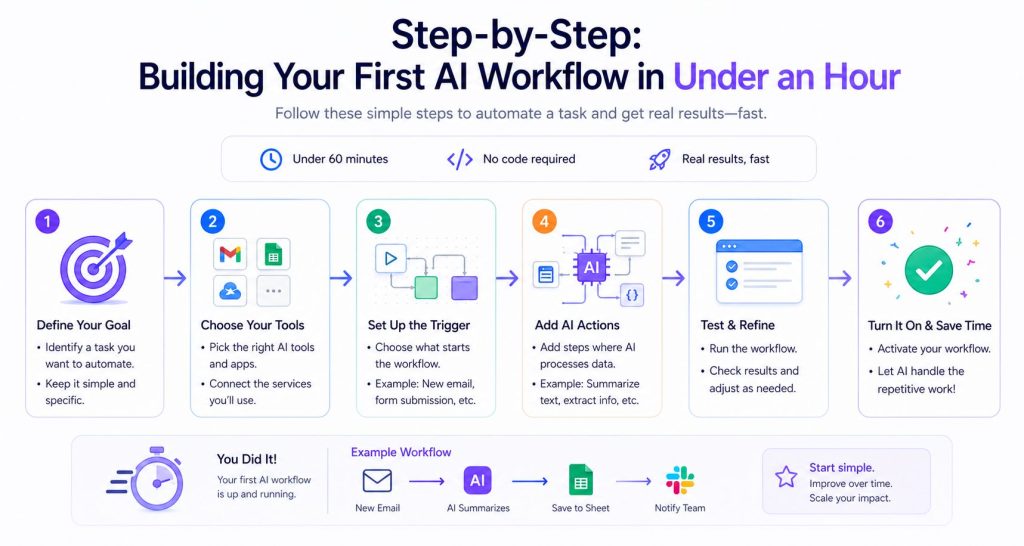
Let’s build something real. We’ll use Zapier for this walkthrough because it’s the most accessible — but the same logic applies in Make and n8n.
The workflow we’re building: Automatically summarize new emails from leads and post the summary to your Slack — so you always know what came in without reading every email.
This workflow saves 30-45 minutes a day for anyone dealing with high email volume.
Step 1 — Sign Up and Open the Workflow Builder
Go to zapier.com and create a free account. Click “Create Zap.” You’ll see the workflow canvas — a simple left-to-right flow showing Trigger → Actions.
Step 2 — Set Your Trigger
The trigger is the event that starts your workflow. For this example:
- Search for and select Gmail (or Outlook if you use it)
- Choose the trigger event: New Email
- Connect your Gmail account and grant permissions
- In the “Label/Mailbox” field, filter to only trigger on emails from a specific label (e.g., “Leads”) so it doesn’t fire on every email
Click “Test trigger” — Zapier will pull in a recent email as sample data. You’ll see the email subject, body, sender, and timestamp all available as variables for the next steps.
Step 3 — Add an AI Action (This Is the Magic Part)
Click the “+” to add your first action after the trigger.
Search for “ChatGPT” or “OpenAI” in the app list. Select it and choose the action “Send Message.”
Connect your OpenAI account (you’ll need an API key — it takes 2 minutes at platform.openai.com). Then build your prompt:
Summarize the following email in 3 bullet points.
Focus on: (1) what the person wants, (2) any deadline mentioned,
(3) the appropriate next action.
Email:
[Insert the email body variable here]
To insert the email body, click the purple variable icon and select “Body Plain” from your Gmail data. Zapier will automatically insert the actual email content when the workflow runs.
Set the model to GPT-4o for best results.
Step 4 — Send the Summary to Slack
Add another “+” after your OpenAI step. Search for Slack and select “Send Channel Message.”
Connect your Slack workspace and choose the channel where you want summaries posted. In the message body, build a clean format:
📧 *New Lead Email*
*From:* [Sender Name variable]
*Subject:* [Subject variable]
*AI Summary:*
[OpenAI Response variable]
*Original received:* [Date variable]
Step 5 — Test and Turn On
Click “Test step” on each action to confirm everything works. You’ll see a test Slack message appear in your channel with a real AI summary of a real email.
If it looks right: click “Publish.” Your workflow is live.
Every time a new email arrives in your Leads label, the AI will summarize it and post it to Slack — automatically, while you’re sleeping, in meetings, or working on something more important.
Total setup time: 45-60 minutes for a first-timer.
5 High-Impact AI Workflows to Build This Week
The email summary workflow is just the beginning. Here are five more workflows that busy professionals use to reclaim hours every week — all buildable with no code.
1. Meeting Notes → Action Items → Notion
The problem: You finish a meeting, someone says “I’ll send notes,” and two days later nothing has happened.
The workflow:
- Trigger: New recording processed in Otter.ai or Fathom
- AI step: Extract action items, owners, and deadlines from the transcript
- Action: Create individual tasks in Notion or ClickUp for each action item, assigned to the right person
Time saved: 20-30 minutes per meeting. For a team that has 5 meetings a week, that’s over 2 hours recovered weekly.
2. Inbound Lead → Personalized Outreach Draft
The problem: A new lead fills out your contact form. You write a personalized reply, but it takes 15-20 minutes to research them and craft something thoughtful.
The workflow:
- Trigger: New submission in Typeform, Tally, or your CRM
- AI step: Research the lead’s company using their website URL (passed via the form) and write a personalized outreach draft based on what they’re looking for
- Action: Create a draft email in Gmail ready for your 30-second review and send
Time saved: 15 minutes per lead. For 10 leads a week, that’s 2.5 hours back.
3. Customer Support Ticket Triage
The problem: Your support inbox is a mix of billing questions, bugs, feature requests, and angry complaints — and every type needs a different response.
The workflow:
- Trigger: New ticket in Zendesk, Intercom, or even a Gmail label
- AI step: Classify the ticket type and sentiment, draft a suggested response
- Action: Tag the ticket with the right category, assign to the right team member, and post the draft reply for quick review
This is the category where AI delivers the most dramatic ROI. A leading insurance company reduced claims processing time by 70% using AI to extract information from submitted documents and automatically route simple claims for immediate payment. The same principle applies at any scale.
4. Content Repurposing Pipeline
The problem: You publish a blog post or record a podcast, and then spend hours turning it into LinkedIn posts, Twitter threads, and email newsletter snippets.
The workflow:
- Trigger: New post published on your blog (RSS feed), or new video/audio processed
- AI step: Generate 3 LinkedIn post variations, 1 Twitter thread, and 1 email newsletter snippet from the original content
- Action: Send all variations to a Google Doc or Notion page for review and scheduling
Time saved: 2-3 hours per piece of content.
5. Weekly Report Generation
The problem: Every Monday morning you pull numbers from 4 different tools to put together a performance summary for your team or clients.
The workflow:
- Trigger: Scheduled (every Monday at 8am)
- AI step: Pull data from Google Analytics, your CRM, and your ad platform via their APIs, then generate a narrative summary with insights and recommendations
- Action: Email the report to your team or post it to Slack automatically
Microsoft customer Games Global saves 22,370 hours per year by automating workflows including on-call approvals, employee onboarding, and reporting. Reporting automation alone — even at a small team level — compounds into serious time savings over months.