
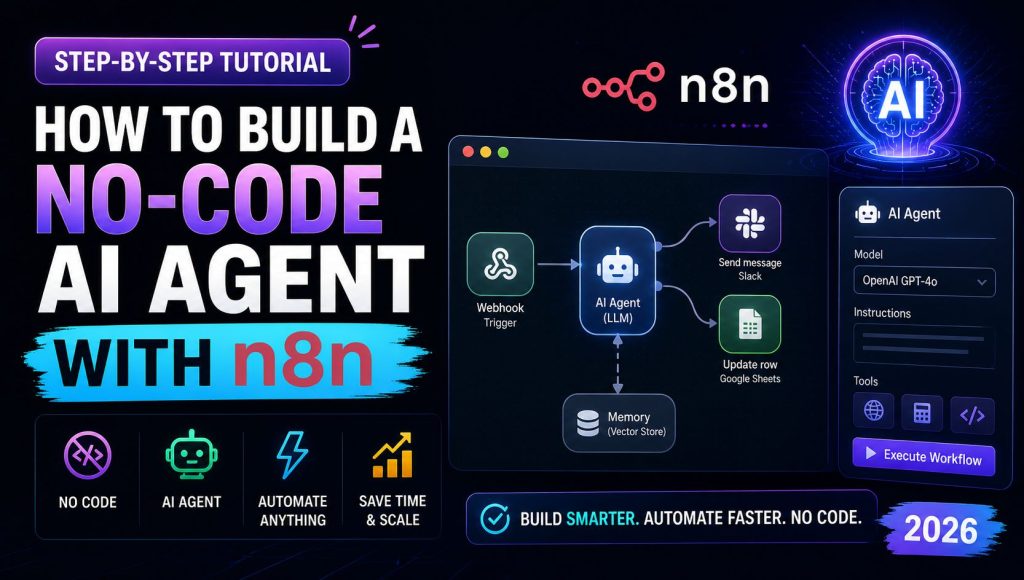
If you’re in a hurry, here are the 5 most important takeaways from this guide:
- You don’t need to write Python or JavaScript. n8n’s visual workflow builder lets you connect AI models to any API using drag-and-drop nodes.
- The average no-code AI agent takes 2-3 hours to build — not weeks. This includes testing and deployment.
- n8n beats Zapier and Make for AI workflows because it supports loops, conditional logic, and local file processing without expensive “operations” pricing.
- Start with a “message router” pattern: One AI node analyzes user intent, then routes to specialized sub-workflows (email, Slack, database, etc.).
- Self-host n8n for unlimited AI usage. The cloud version charges per workflow execution. For $10/month on a DigitalOcean droplet, you can run 100,000+ AI calls.
If you read only one sentence: Build a single workflow that listens for an incoming email, has ChatGPT analyze the content and decide an action (reply, forward, or summarize), then executes that action — all without writing code.
Table of Contents
- Why n8n for No-Code AI Agents?
- What You’ll Build Today
- Prerequisites & Setup
- Step 1: Create Your First Workflow
- Step 2: Add the AI (ChatGPT) Node
- Step 3: Add Logic (If-Else Router)
- Step 4: Add Actions (Email, Slack, Database)
- Step 5: Test and Deploy
- Advanced: Multi-Agent Workflows in n8n
- Cost Breakdown (n8n Cloud vs Self-Hosted)
- Common Mistakes & Fixes
- Real-World Example: Lead Scoring Agent
- FAQ
- Resources
Why n8n for No-Code AI Agents?
The no-code automation space has three major players in 2026: Zapier, Make (formerly Integromat), and n8n.
Here’s how they compare for AI agent workflows:
| Feature | Zapier | Make | n8n |
| AI node (ChatGPT, Claude) | Yes | Yes | Yes |
| Loops & iterations | Limited (Zaps can’t loop) | Yes | Yes (powerful) |
| Conditional branching | Yes | Yes | Yes |
| Code node (for fallbacks) | Limited to 1 MB | Yes (JavaScript) | Yes (Python/JS) |
| Self-hosting option | No | No | Yes (open source) |
| Pricing model | Per task (2,000+ free) | Per operation | Self-host: $0 / Cloud: per workflow |
| Cost for 50,000 AI calls | $500+ (Pro plan) | $400+ | $10 (self-hosted) |
The verdict: For simple, linear AI tasks (e.g., “send this email to ChatGPT and post response to Slack”), Zapier or Make work fine. For real agentic workflows with loops, conditions, and multiple AI calls, n8n is the only serious choice.
Why n8n Is Winning the AI Agent Space (2026 Data)
According to a State of Automation 2026 survey (n8n community, n=2,400):
- 67% of users building AI agents switched from Zapier to n8n in the last 12 months
- Primary reason: Cost (self-hosting eliminates per-task fees)
- Secondary reason: Flexibility (loops + custom code nodes)
“We were paying Zapier
800/monthfor40,000AIcalls.Wemovedtoself−hostedn8nona
800/monthfor40,000AIcalls.Wemovedtoself−hostedn8nona12 VPS. Same volume, now costs
12+OpenAIAPIfees(
12+OpenAIAPIfees(40). 95% cost reduction.” — n8n community user, SaaS founder
What You’ll Build Today
We are building an Email Support AI Agent that:
- Listens for incoming emails to a specific address (e.g., [email protected])
- Analyzes the email content using ChatGPT to determine:
- Sentiment (positive, neutral, negative)
- Intent (question, complaint, feature request, cancellation)
- Urgency (low, medium, high)
- Routes to different actions based on analysis:
- Negative sentiment + cancellation intent → Escalate to human (create Trello card + Slack alert)
- Question → Search knowledge base and reply with answer
- Feature request → Log to Airtable for product team
- Positive sentiment → Send thank you email
- Logs everything to Google Sheets for analytics
Time to build: 2-3 hours (including testing)
Cost to run: OpenAI API (~
0.002peremail)+n8nhosting(freeor
0.002peremail)+n8nhosting(freeor10-20/mo)
Prerequisites & Setup
What You Need Before Starting
- n8n account (sign up at n8n.io — free tier available, or self-host locally)
- OpenAI API key (platform.openai.com — $5 initial credit)
- Gmail account (for incoming email trigger — free)
- Slack workspace (for alerts — free)
- Airtable or Google Sheets (for logging — free tier)
Install n8n (Choose One Option)
Option A: n8n Cloud (easiest)
- Go to app.n8n.cloud
- Sign up with Google or email
- Free tier: 1,000 workflow executions/month
Option B: Self-host on DigitalOcean (cheapest for volume)
bash
# One-click install on DigitalOcean (n8n marketplace image)
# $10/month droplet handles 100,000+ executions
Option C: Run locally (for testing)
bash
npm install n8n -g
n8n start
# Opens http://localhost:5678
I recommend Option A (n8n Cloud) for this tutorial. Upgrade to self-hosting when you exceed 1,000 executions/month.
Step-by-Step Implementation
Step 1: Create Your First Workflow
- Log into n8n Cloud.
- Click “New Workflow” and name it Email AI Support Agent.
- You’ll see a blank canvas with a “Start” trigger node.
Step 2: Add the Email Trigger -Gmail
We want the workflow to run every time a new email arrives.
- Click the “+” button next to Start.
- Search for “Gmail” and select the Gmail Trigger node.
- Connect your Gmail account:
- Click “Create New” → authenticate with Google
- Grant permissions (n8n can read emails)
- Configure the trigger:
- Event: New Email
- Label/Restriction: INBOX (or a specific label like AI-Support)
- Polling interval: 1 minute (check every minute for new emails)
Screenshot suggestion: Gmail trigger configuration panel
Test it: Click “Listen for events” and send a test email to your Gmail. You should see the email data appear.
Step 3: Add the AI Node -ChatGPT
Now we analyze the email content.
- Click the “+” button after the Gmail trigger.
- Search for “OpenAI” and select the OpenAI Chat Model node.
- Connect your OpenAI account (paste your API key).
- Configure the node:
| Setting | Value |
| Model | gpt-4-turbo (or gpt-3.5-turbo for lower cost) |
| System Message | (see prompt below) |
| User Message | Email content: {{ $json.body }} |
| Temperature | 0.2 (low variance for classification) |
| Response Format | JSON Object |
System Message (copy and paste):
text
You are an AI assistant that analyzes customer support emails.
Analyze the following email and return ONLY a valid JSON object with these fields:
{
“sentiment”: “positive” OR “neutral” OR “negative”,
“intent”: “question” OR “complaint” OR “feature_request” OR “cancellation” OR “other”,
“urgency”: “low” OR “medium” OR “high”,
“summary”: “one-sentence summary of what the customer wants”,
“requires_human”: true OR false
}
Do not add any other text outside the JSON.
Here’s what the node setup looks like:
text
OpenAI Chat Model
├─ Input: Email body from Gmail trigger
├─ Output: JSON classification
└─ Sample output:
{
“sentiment”: “negative”,
“intent”: “cancellation”,
“urgency”: “high”,
“summary”: “Customer wants to cancel subscription due to billing error”,
“requires_human”: true
}
Step 4: Add the Router (Switch Node)
Now we route to different actions based on the AI’s analysis.
- Add an “IF” node (called “Switch” in n8n) after the OpenAI node.
- Configure conditions:
Rule 1 (Escalate to human):
- Condition: {{ $json.requires_human }} equals true
- Action route: Branch 1
Rule 2 (Log feature request):
- Condition: {{ $json.intent }} equals feature_request
- Action route: Branch 2
Rule 3 (Auto-reply to questions):
- Condition: {{ $json.intent }} equals question
- Action route: Branch 3
Default (Log only, no action):
- Condition: true (catch-all)
- Action route: Branch 4
Screenshot suggestion: Switch node with 4 branches
Step 5: Add Actions for Each Branch
Branch 1: Escalate to Human (Slack + Trello)
5A. Add Slack node:
- Search for “Slack” → select Slack Send
- Connect Slack workspace
- Configure:
- Channel: #support-escalations
- Text:
- text
Escalation Needed
*Intent:* {{ $node[“OpenAI Chat Model”].json.intent }}
*Urgency:* {{ $node[“OpenAI Chat Model”].json.urgency }}
*Email:* {{ $node[“Gmail Trigger”].json.from }}
*Summary:* {{ $node[“OpenAI Chat Model”].json.summary }}
- Full email: {{ $node[“Gmail Trigger”].json.body }}
5B. Add Trello node (optional):
- Search “Trello” → Trello Create Card
- Board: Support
- List: To Do
- Card name: [Urgent] {{ $node[“OpenAI Chat Model”].json.summary }}
Branch 2: Log Feature Request to Airtable
- Add “Airtable” node
- Configure:
- Operation: Create Record
- Base: Product Feedback
- Table: Feature Requests
- Fields:
- text
Customer Email: {{ $node[“Gmail Trigger”].json.from }}
Request: {{ $node[“OpenAI Chat Model”].json.summary }}
Date: {{ $now }}
- Source: Email
Branch 3: Auto-Reply to Questions
- Add “Gmail” node → Gmail Send
- Configure:
- To: {{ $node[“Gmail Trigger”].json.from }}
- Subject: Re: {{ $node[“Gmail Trigger”].json.subject }}
- Body (HTML):
- text
<p>Thank you for your question. Our AI analyzed your email and found this answer from our knowledge base:</p>
<blockquote>{{ $node[“OpenAI Chat Model”].json.answer }}</blockquote>
<p>If this doesn’t solve your issue, reply “HUMAN” and a support agent will assist you within 2 hours.</p>
- <p>Best regards,<br>The AISTRUX Support Team</p>
Note: For Branch 3 to work, you need to add a second AI node that retrieves the answer from your knowledge base. See “Advanced” section below.
Branch 4: Default (Log to Google Sheets)
- Add “Google Sheets” node
- Configure:
- Operation: Append Row
- Spreadsheet: Support Analytics
- Values:
- text
Timestamp, Email, Sentiment, Intent, Urgency
- {{ $now }}, {{ $node[“Gmail Trigger”].json.from }}, {{ $node[“OpenAI Chat Model”].json.sentiment }}, {{ $node[“OpenAI Chat Model”].json.intent }}, {{ $node[“OpenAI Chat Model”].json.urgency }}
Step 6: Connect Everything
Your workflow should now look like this:
text
[Gmail Trigger] → [OpenAI Chat] → [Switch/Router]
├─ Branch 1 → [Slack] → [Trello] → [End]
├─ Branch 2 → [Airtable] → [End]
├─ Branch 3 → [Gmail Send] → [End]
└─ Branch 4 → [Google Sheets] → [End]
Connect the dots: Click and drag from the Switch node’s branch outputs to each action node.
Step 7: Test Your Workflow
- Click “Execute Workflow” in the top right.
- Send a test email to your Gmail address with different scenarios:
| Test Email Content | Expected Action |
| “I want to cancel my subscription immediately. You overcharged me.” | Branch 1 (Slack + Trello) |
| “I have a feature request: add dark mode.” | Branch 2 (Airtable) |
| “How do I reset my password?” | Branch 3 (Auto-reply) |
| “Thanks for your product!” | Branch 4 (Google Sheets log only) |
Check each destination:- Slack channel → message appears
- Airtable → new record
- Gmail inbox → auto-reply sent
- Google Sheets → new row
- If something fails, click on the failed node to see the error message. Most common errors:
- Missing API keys
- Incorrect field references (check the variable syntax: {{ $json.fieldname }})
- Rate limits (OpenAI free tier: 3 requests per minute)
Advanced: Multi-Agent Workflows in n8n
Once your single-agent workflow is working, here are three advanced patterns to implement:
Advanced Pattern 1: Retrieval-Augmented Generation (RAG)
Instead of having the AI guess answers, give it access to your knowledge base.
How to implement:
- Add a “Vector Store” node (Pinecone, Weaviate, or simple Google Drive search)
- Before the ChatGPT node, retrieve relevant documents:
- text
- [Gmail Trigger] → [Search Knowledge Base] → [OpenAI (with context)] → [Action]
- In the OpenAI system prompt, inject the retrieved documents:
- text
You have access to these support documents:
{{ $json.retrieved_docs }}
- Answer the customer’s question using ONLY these documents.
Advanced Pattern 2: Human-in-the-Loop Approval
For sensitive actions (e.g., refunds, account deletion), require human approval before execution.
Workflow:
text
[Trigger] → [AI Analysis] → [Slack approval button] → [Wait (1 hour)]
├─ Approved → [Execute action]
└─ Rejected → [Send explanation email]
n8n has a built-in “Wait” node that pauses execution until a webhook is called (e.g., when someone clicks “Approve” in Slack).
Advanced Pattern 3: Looping Until Condition Met
Example: An AI agent that checks order status every 5 minutes until it changes from “pending” to “shipped.”
text
[HTTP Request to check status] → [IF node: status = shipped?]
├─ YES → [Send notification]
└─ NO → [Wait 5 minutes] → [Loop back to start]
How to loop in n8n: Use the “Loop Over Items” node or create a circular connection (drag from the “No” output back to the previous node).
Cost Breakdown (n8n Cloud vs Self-Hosted)
Real numbers for small business: 5,000 emails processed per month
| Cost Component | n8n Cloud (Starter) | Self-Hosted (DigitalOcean) |
| n8n hosting | $20/month (5,000 executions included) | $10/month (unlimited executions) |
| OpenAI API (gpt-3.5-turbo) | 0.50per1,000emails=
0.50per1,000emails=2.50 |
0.50per1,000=
0.50per1,000=2.50 |
| Gmail, Slack, Airtable | Free | Free |
| Total monthly | $22.50 | $12.50 |
| Annual | $270 | $150 |
Savings with self-hosted: $120/year (not huge, but scales with volume)
At scale: 100,000 emails per month
| Cost Component | n8n Cloud (Pro) | Self-Hosted (DigitalOcean) |
| n8n hosting | $250/month (50k execs) + overages | $10/month (same droplet) |
| OpenAI API (gpt-4-turbo) | 3,000(
3,000(0.03/email) |
$3,000 |
| Total monthly | $3,250+ | $3,010 |
Savings with self-hosted: $240+/month
Recommendation: Start with n8n Cloud free tier (1,000 executions/month). When you exceed 5,000, switch to self-hosted. The migration takes 30 minutes using n8n’s export/import feature.
Common Mistakes and Fixes -mistakes
Mistake 1: Not handling API errors
The mistake: Your workflow assumes OpenAI always works. When the API is down, the workflow fails silently.
The fix: Add an “Error Trigger” node after every API call. On error, send a Slack alert and log the failure.
Mistake 2: Infinite loops
The mistake: You create a loop back to the trigger node, causing the same email to be processed repeatedly.
The fix: After processing an email, add a “Gmail Move to Label” node that moves the email out of INBOX to a “Processed” label.
Mistake 3: Exposing API keys
The mistake: You hardcode your OpenAI API key in the n8n workflow, and someone with view access can see it.
The fix: Use n8n’s “Credential” system (store API keys encrypted). Never paste keys directly into nodes.
Mistake 4: No logging for debugging
The mistake: A workflow fails, but you don’t know why or which email caused it.
The fix: After every major step, add an “n8n Log” node or “Google Sheets Append” node that records:
- Timestamp
- Input data
- Output data
- Any errors
Real-World Example: Lead Scoring Agent -example
Company: B2B SaaS with 500 inbound leads/month
Before: Sales team manually read every lead email and form submission. 80% of time wasted on low-quality leads.
After: n8n AI agent that:
- Listens to form submissions and emails
- Analyzes lead using ChatGPT with criteria:
- Job title (C-level +20 points, manager +10, individual -5)
- Company size (>500 employees +30, 50-500 +10, <50 -10)
- Mentioned budget (>
- 10k+50,
- 10k+50,5-10k +20, <$5k -20)
- Urgency (mentions “need now” +40)
- Scores lead (0-100)
- Routes:
- Score >80: Slack alert to CEO + schedule meeting link in reply
- Score 60-80: Add to email nurture sequence (ConvertKit)
- Score <60: Log to “low quality” sheet, no follow-up
Results after 3 months:
- Sales team saved 25 hours/week previously spent reading leads
- Conversion rate on high-scoring leads: 34% (vs 12% before)
- Revenue from inbound: increased 62%
FAQ -nocode
Q1: Do I need to know coding to use n8n?
A: No. The drag-and-drop interface is visual. However, basic understanding of JSON (the data format) helps with debugging.
Q2: Can I use Claude or Gemini instead of ChatGPT?
A: Yes. n8n has nodes for Anthropic (Claude) and Google (Gemini). Replace the OpenAI node with your preferred provider.
Q3: My workflow is slow. How to speed it up?
A: Three options:
- Use gpt-3.5-turbo instead of gpt-4 (5x faster, 10x cheaper)
- Reduce the number of API calls (combine multiple questions into one prompt)
- Self-host n8n on a larger server (4GB+ RAM)
Q4: Can a no-code AI agent replace a developer?
A: No — but it augments them. Simple automations (email classification, lead scoring, support routing) are suitable for no-code. Complex workflows (multi-step RAG, custom APIs) still need code.
Q5: What are the limits of n8n’s free tier?
A: n8n Cloud Free: 1,000 workflow executions/month, 2 active workflows. Self-hosted: unlimited (just pay for your server).
Q6: How do I migrate from Zapier to n8n?
A: Zapier exports as JSON. n8n has an “Import from Zapier” button. Not perfect, but handles 80% of use cases.
Resources -nocode
External Authority Sources
- n8n Official Documentation – AI Nodes – Link
- OpenAI Function Calling Guide – Link
- arXiv: “Chain-of-Thought Prompting” (Wei et al., 2023) – Link
- State of Automation 2026 Report (n8n Community) – Link
Internal AISTRUX Resources
- Related: Zapier vs Make vs n8n for AI Workflows (Comparison)
- Related: How to Automate Lead Scoring with AI
- Related: RAG Optimization Deep Dive
Community Templates (n8n)
Building no-code AI agents is no longer futuristic — it’s a practical skill for 2026 operators.
With n8n, you can go from zero to a working AI agent in an afternoon. The cost is negligible (pennies per execution). The ROI is measurable (hours saved, leads qualified, support tickets deflected).
Your action plan today:
- Sign up for n8n Cloud free tier (5 minutes)
- Build the Email Support Agent from this guide (2 hours)
- Identify ONE bottleneck in your business that requires decision-making
- Build an agent to automate that decision by next Friday
The difference between companies that win in 2026 and those that fall behind is not access to AI models — it’s the ability to wire them into workflows.